How to Isolate VLANs on Ubiquiti UniFi: Complete Firewall Configuration Guide
Placing every device in your home or office on a single flat subnet is a significant security risk. If an unpatched IoT device (like a smart TV or IP camera) gets compromised, an attacker can freely scan and access your primary computers, NAS storage, or hypervisor management interfaces.
Setting up Virtual Local Area Networks (VLANs) breaks your network into isolated segments. However, simply creating a VLAN in Ubiquiti UniFi isn't enough—by default, UniFi enables inter-VLAN routing between all local subnets.
To enforce true security, you must create explicit firewall rules. In this guide, we will walk through the exact firewall rules needed to isolate VLANs in UniFi while maintaining essential communication.
Prerequisites: Setting Up Your Networks
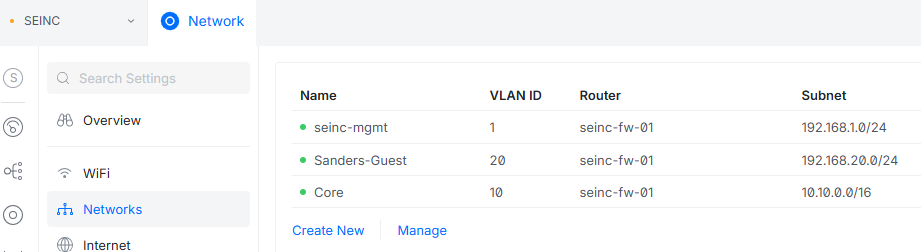
Before configuring firewall rules, create your virtual networks under Settings > Networks inside your UniFi Network Application. In our live environment below, we have established three isolated zones across distinct VLAN IDs and subnets:
- Management Network (
seinc-mgmt): VLAN ID 1 (Subnet:192.168.1.0/24) - Guest Network (
Sanders-Guest): VLAN ID 20 (Subnet:192.168.20.0/24) - Core Infrastructure (
Core): VLAN ID 10 (Subnet:10.10.0.0/16)
Rule 1: Allow Established and Related Connections
Firewalls process rules sequentially from top to bottom. Before blocking inter-VLAN traffic, you must create a stateful rule that allows return traffic.
If a device on your trusted network initiates a connection to an IoT or guest device, the firewall needs to allow the return packets back through. Without this rule, blocking inter-VLAN traffic will break two-way communication that you intentionally initiated.
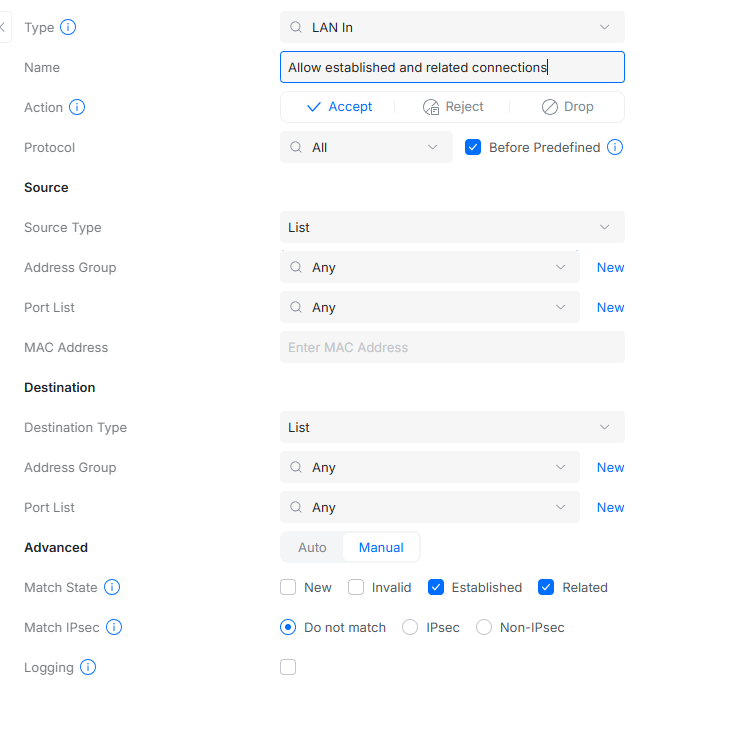
Configuration Steps (LAN In):
- Type / Direction: LAN In (Before Predefined)
- Name:
Allow established and related connections - Action: Accept
- Protocol: All
- Advanced Match State: Check Established and Related
- Source / Destination: Any / Any
Rule 2: Block Inter-VLAN Traffic (Isolating Subnets)
Once return traffic is permitted, create a rule below Rule 1 to drop all traffic traveling from untrusted networks (like IoT or Guest) to your sensitive internal networks or management subnets.
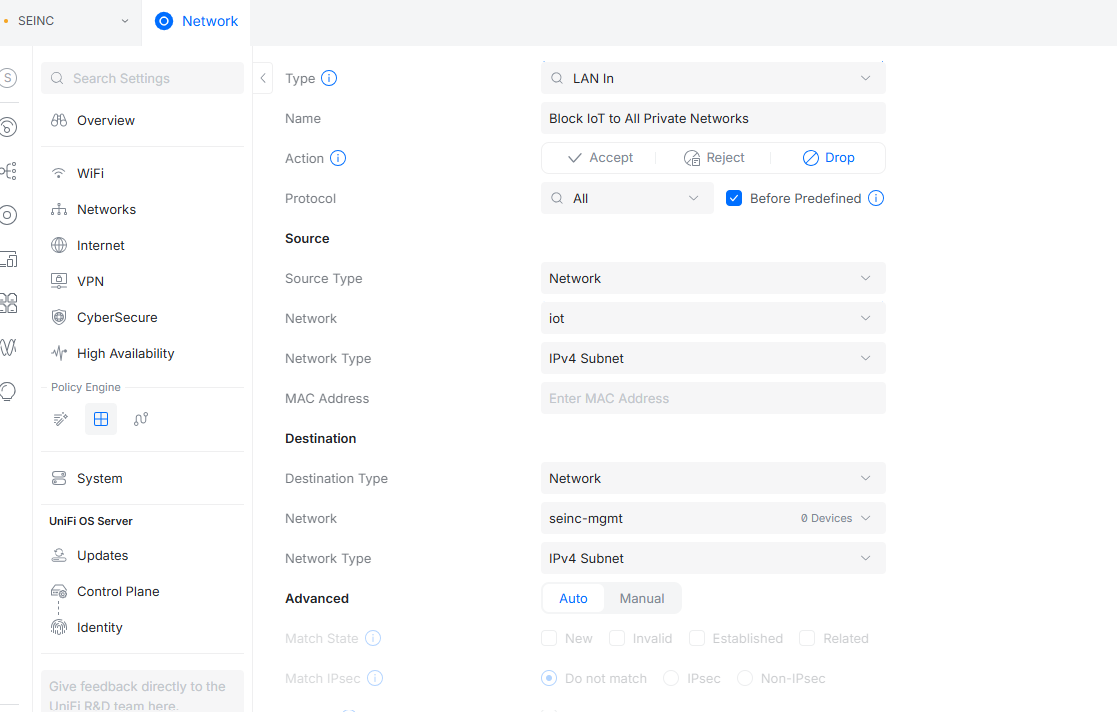
Configuration Steps (LAN In):
- Type / Direction: LAN In (Before Predefined)
- Name:
Block IoT to All Private Networks - Action: Drop
- Protocol: All
- Source Type: Network (Select your untrusted subnet, e.g.,
iot) - Destination Type: Network (Select your private network, e.g.,
seinc-mgmt)
Verification & Best Practices
- Rule Order Matters: Always ensure your "Allow Established and Related" rule sits ABOVE any "Block/Drop" rules in the policy list.
- Test Your Rules: Connect a device to your Guest/IoT Wi-Fi network and attempt to ping or SSH into your router gateway or NAS IP on the management network. The request should time out completely.
- DNS & Gateway Access: If your IoT or Guest VLAN uses a DNS server on another VLAN (like a Pi-hole on your Core network), create an explicit "Allow" rule above your Block rule allowing port 53 traffic specifically to that DNS server IP.